Retail
Your Great Vault this week
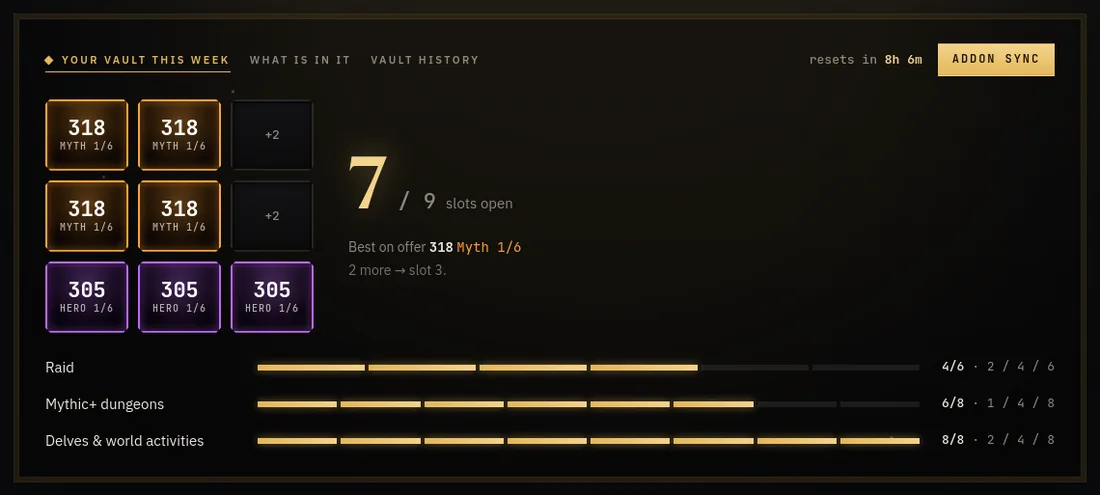
Nine squares that fill as you clear raid bosses, Mythic+ keys and delves. Each row shows how far along it is and what the next slot pays, the best item level on offer, and a countdown to the reset.
 Go to the Retail home page →
What is in your vault
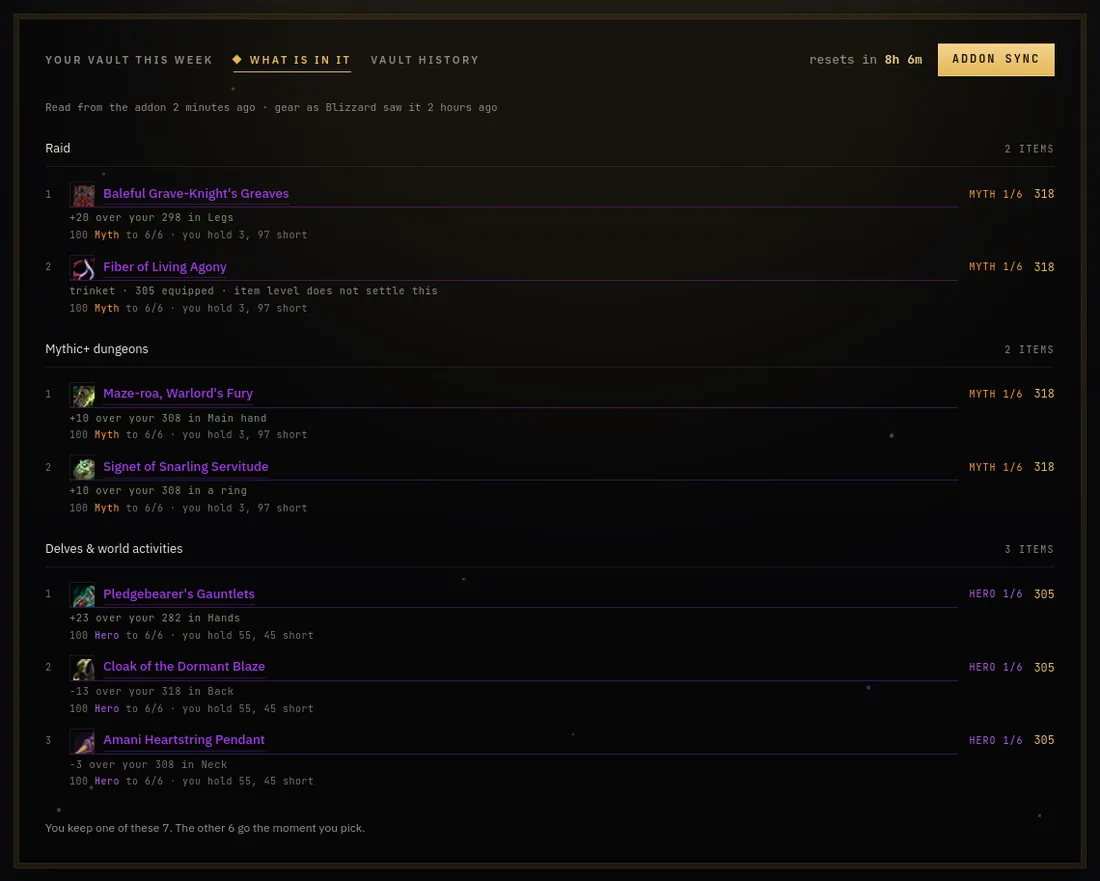
Once the vault has rolled, the addon sends what is on offer. Every item is set against what you are wearing, so "+20 over your legs" stands out, with the crests the upgrade costs and how many you hold.
 Go to the Retail home page →
Vault history
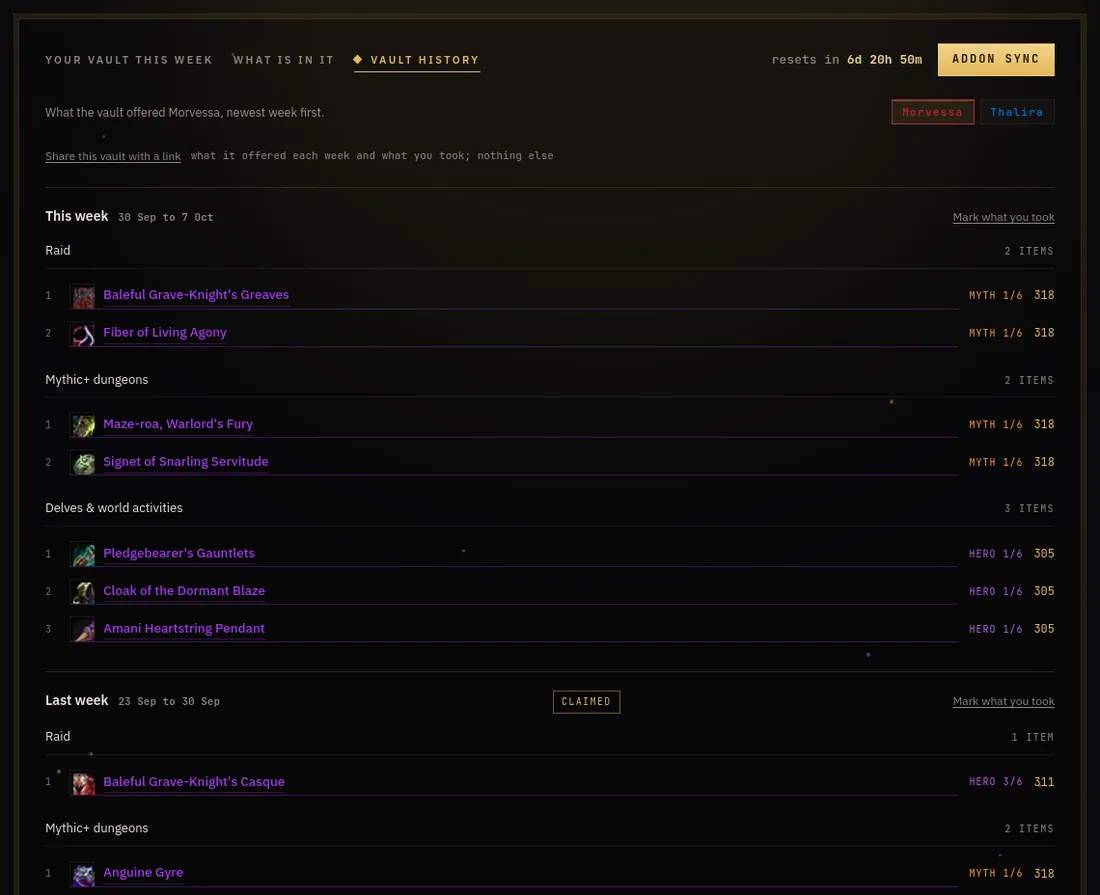
The Vault history tab keeps what your Great Vault offered each week, per character, newest first: every item with its item level, track and tooltip, and "Claimed" once the vault was emptied that week, with the item you took marked "Taken". Addon 1.16.1 and newer note that pick the moment you make it, even if you never synced before choosing; with an older addon it is worked out from your gear and bags when that leaves no doubt, and otherwise you can mark it yourself. One link shares the vault of one character (what it offered, what you took) with anyone, and nothing else about you. Kept for a year on your account; it starts with your first sync, earlier weeks were never kept.
 Go to the Retail home page →
Every alt's week at once
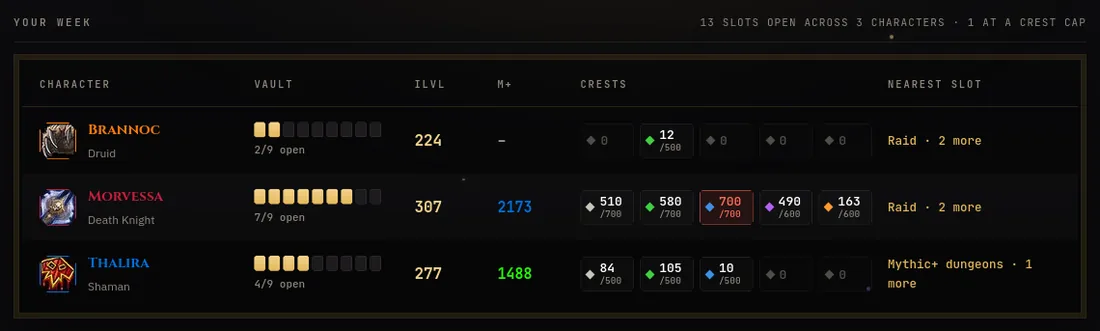
One line per character: open vault slots, item level, Mythic+ rating, crests per tier (red when you are at the cap and wasting them) and the nearest vault slot you could still finish.
 Go to Characters →
Character sheets from Battle.net
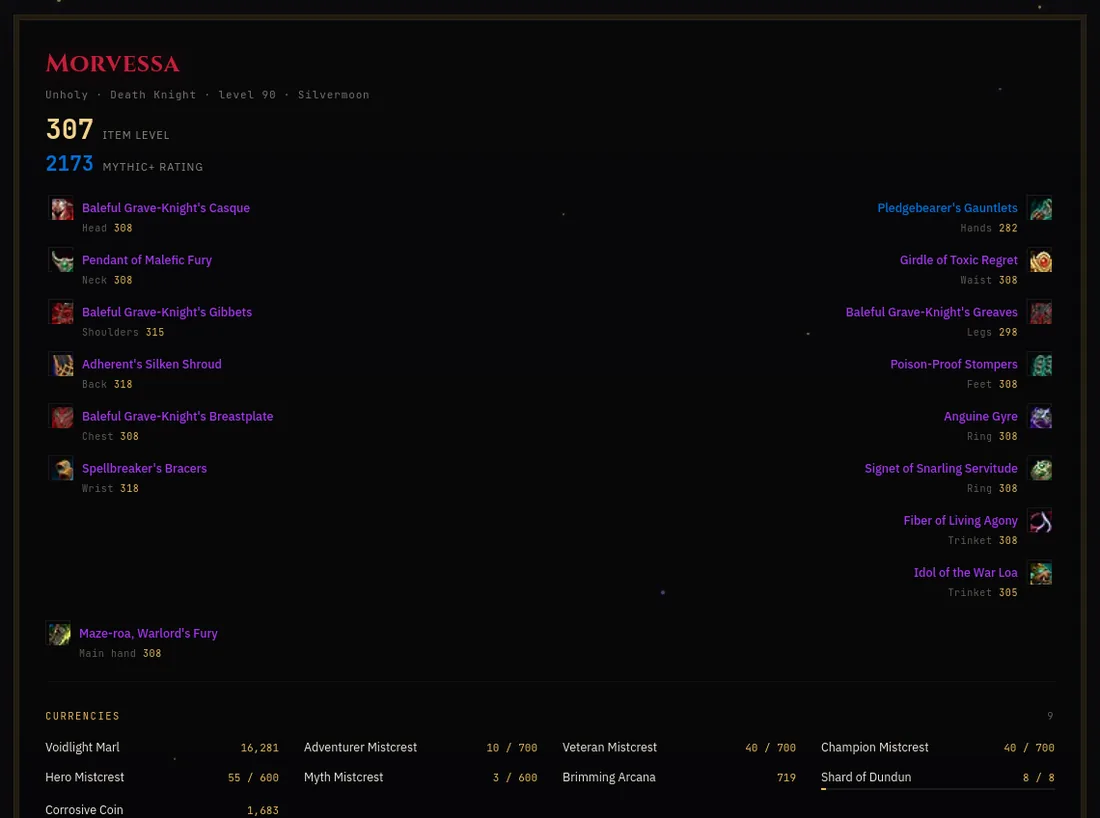
Sign in with Battle.net and your characters are read from Blizzard: gear with Wowhead tooltips, this season's Mythic+ runs, renown and reputation. The addon adds your currencies, which Blizzard's API cannot give.
 Go to Characters →
Compare gear on hover
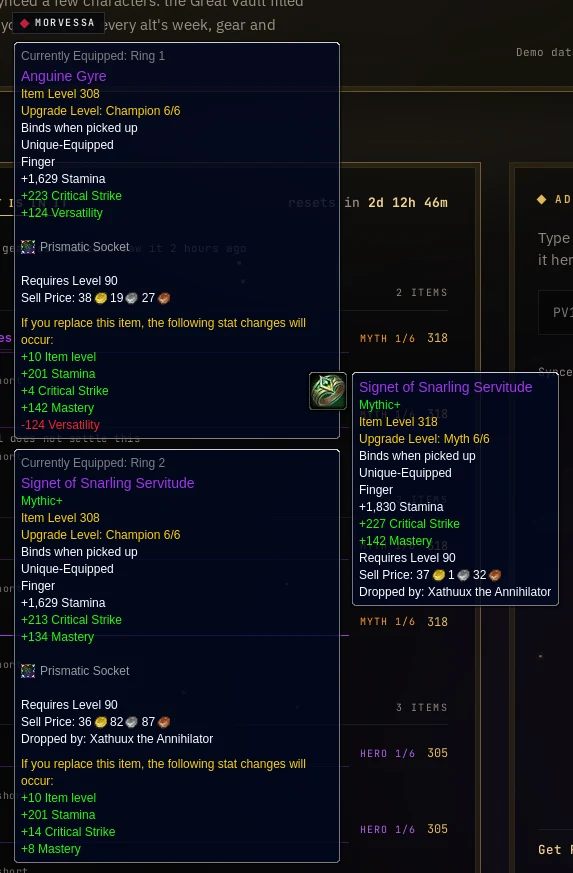
Pick the character you are playing from the plate under the game switch. Hover any item on the site, a vault reward or a piece on the roster, and a panel beside the tooltip shows what that character wears in the slot: item level and every stat, up or down. Rings, trinkets and weapons are set against both slots. Needs Battle.net connected, which is where the gear comes from.
 Go to Characters →
Loot and item level
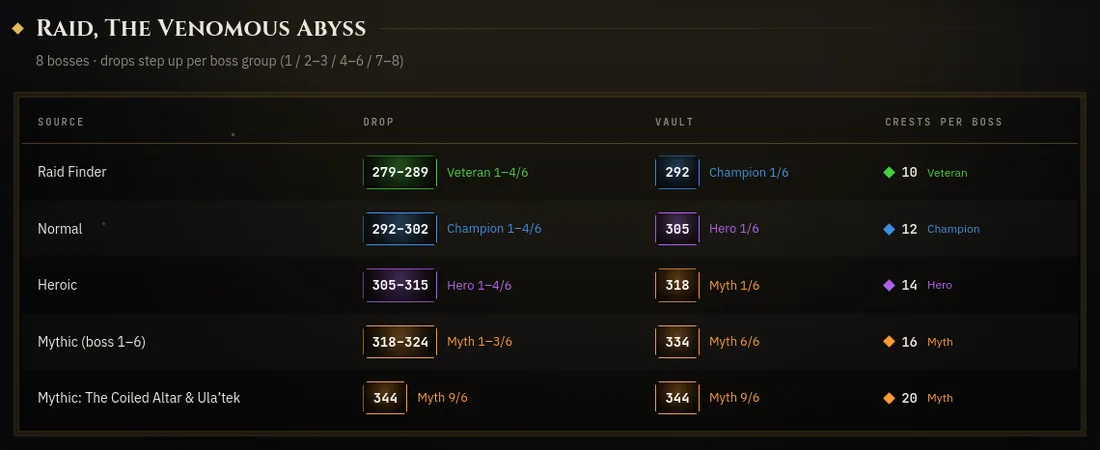
Every source of gear side by side: what it drops, what the vault pays, on which upgrade track, and the crests each rank costs.
 Go to Loot & iLvl →
Delves
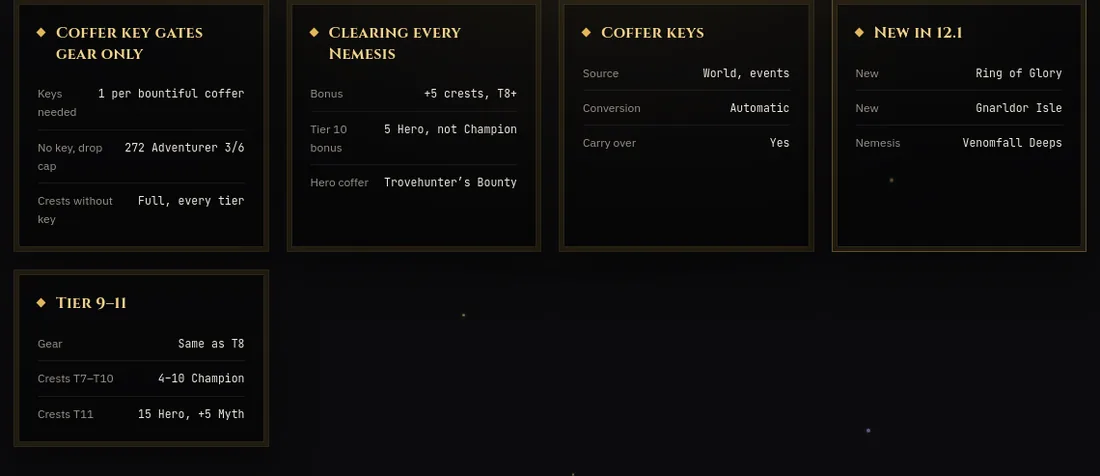
Which tier pays what, how coffer keys gate the best loot, and what is new this patch.
 Go to Delves →
Classes
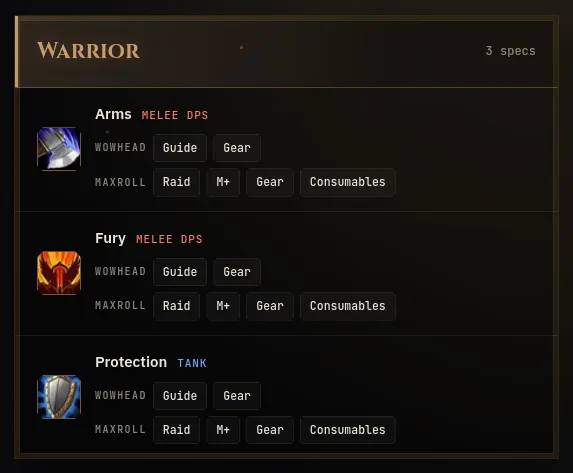
Every class and spec with its role, and straight links to the guides, gear lists, Mythic+ and raid pages worth reading.
 Go to Classes →
Your reset, your region
EU or US decides when your week rolls over, and the site counts down to your reset, not someone else's.
Go to Settings →
WoW Forever
All your characters in one table
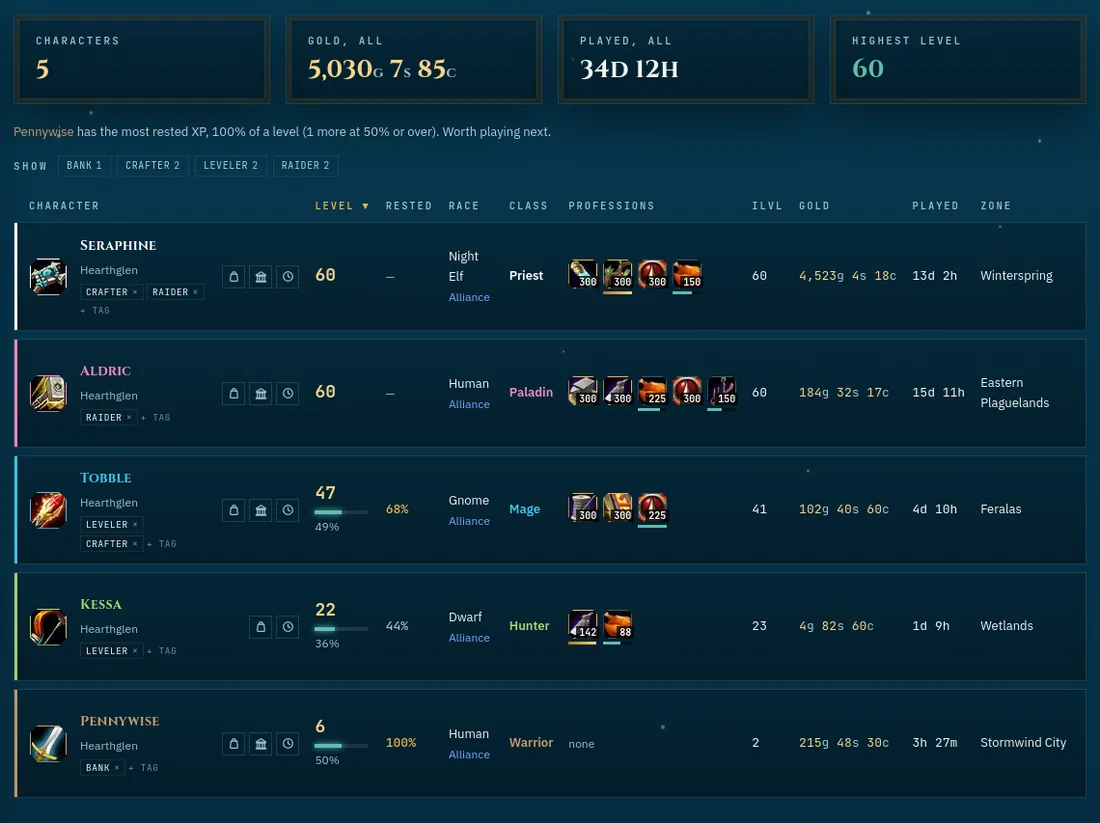
Level and XP, rested XP, race and class, professions with their skill bars, item level, gold, time played, zone and when each one last synced. Sort any column, tag alts (Bank, Crafter, Leveler) and filter by tag. It also names the alt with the most rested XP.
 Go to the Forever home page →
The character sheet
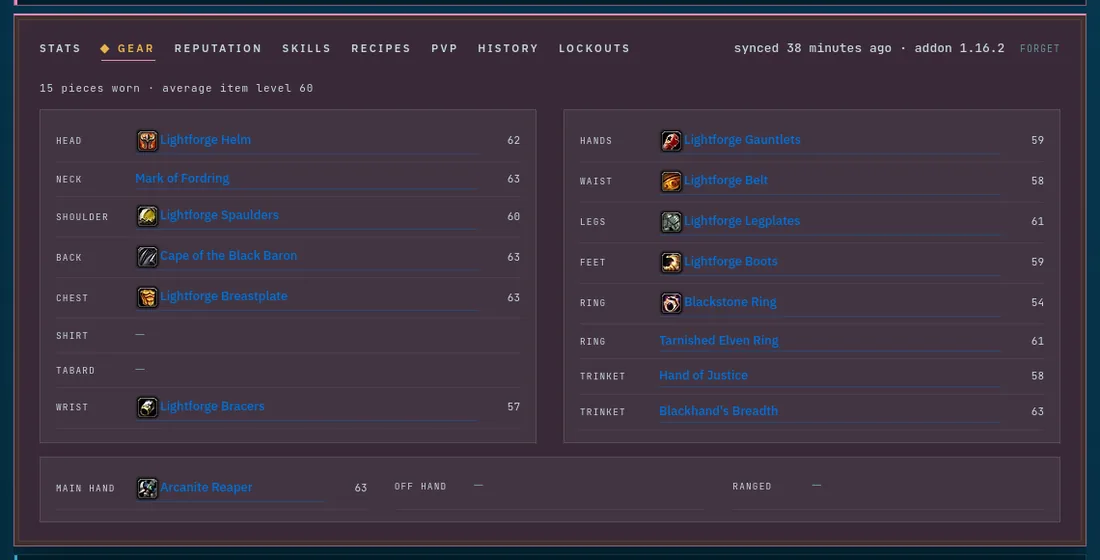
Click a character for its sheet: stats, every equipped item with its item level, reputation, skills, recipes, PvP rank, raid lockouts and history. Exactly as the addon read them in game.
 Go to the Forever home page →
Bags and bank
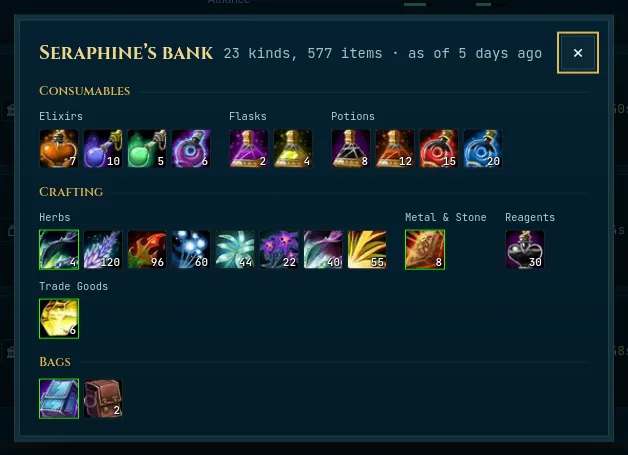
Each character's bags and bank as the game draws them: icons with stack counts, quality borders, grouped into consumables, crafting materials, quest items and the rest. The bank is as fresh as your last visit to it.
 Go to the Forever home page →
Your character, one click away
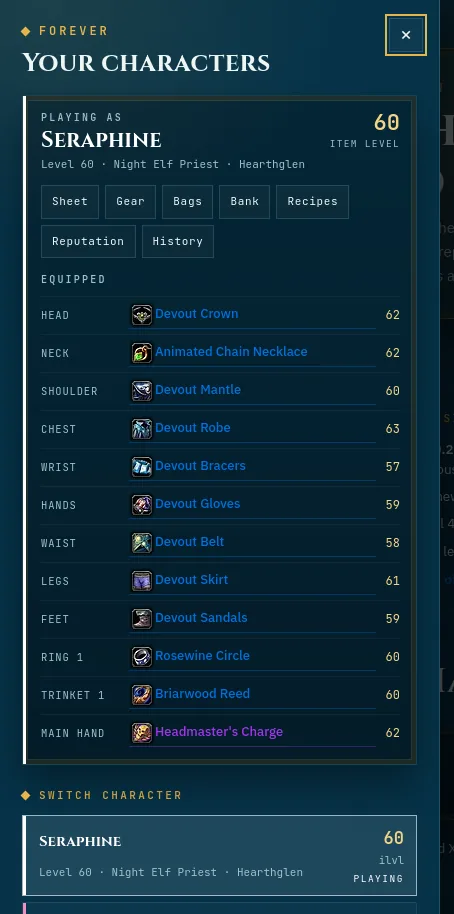
The plate under the game switch opens a side panel with all your characters. Pick the one you are playing and it is remembered on every device. From there it is one click to its sheet, gear, bags, bank, recipes or reputation, and its equipped gear is right there.
 Go to the Forever home page →
Compare gear on hover
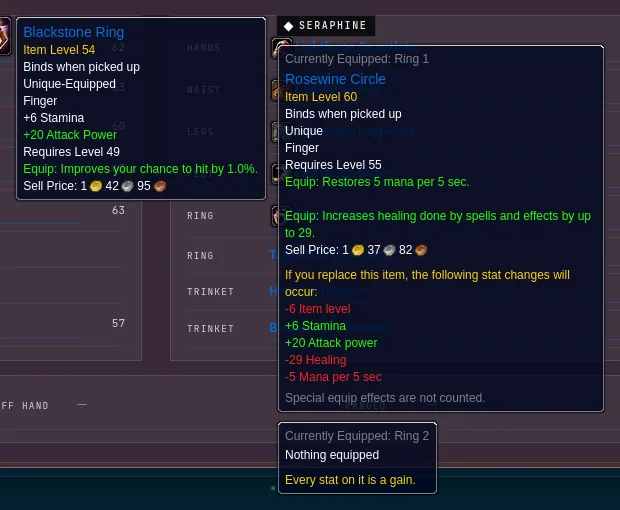
Hover any item on the site, in an alt's gear, a bag, the bank, a search result or a recipe, and a panel beside the tooltip shows what your current character wears in that slot: item level, stats and the classic equip bonuses (spell power, crit, hit, mana per 5), up or down. Rings and trinkets are set against both slots, a two-hander against main and off hand together.
 Go to the Forever home page →
Find an item
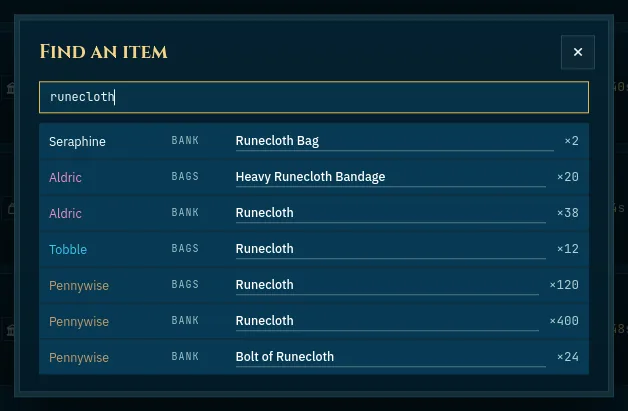
Type a name and see every character that has it, worn, in the bags or in the bank, and how many.
 Go to the Forever home page →
Reputation across alts
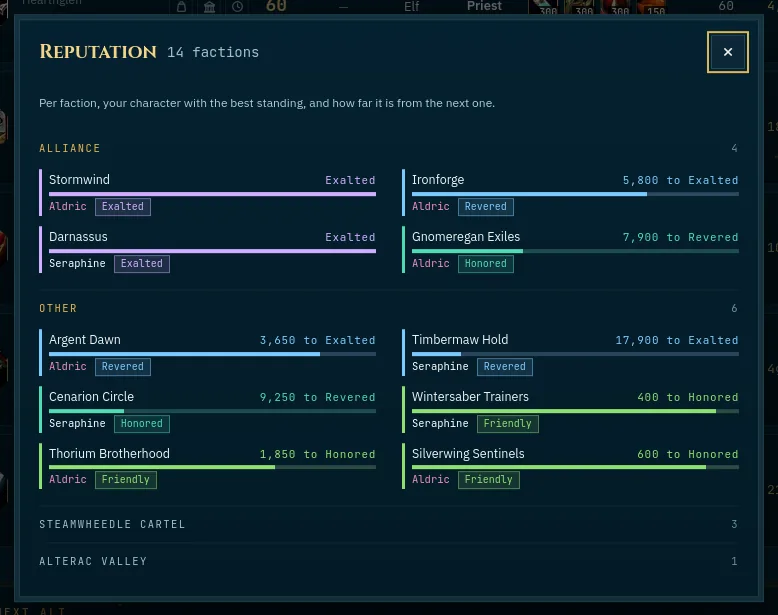
Per faction, which of your characters stands best with it, and how far that one still is from the next standing.
 Go to the Forever home page →
Professions, account-wide
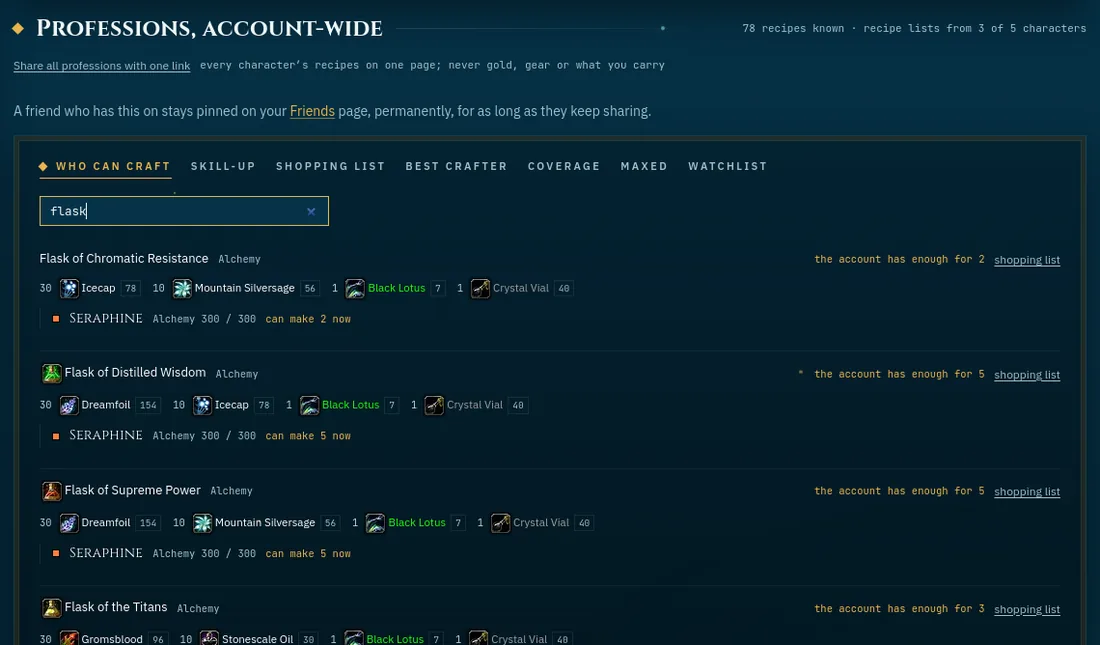
Every character's recipe lists read together. Who can craft this? What gives a skill-up next? A shopping list of reagents, with what your bags and banks already hold. Plus the best crafter per trade, what nobody covers yet, and a watchlist.
 Go to the Forever home page →
History
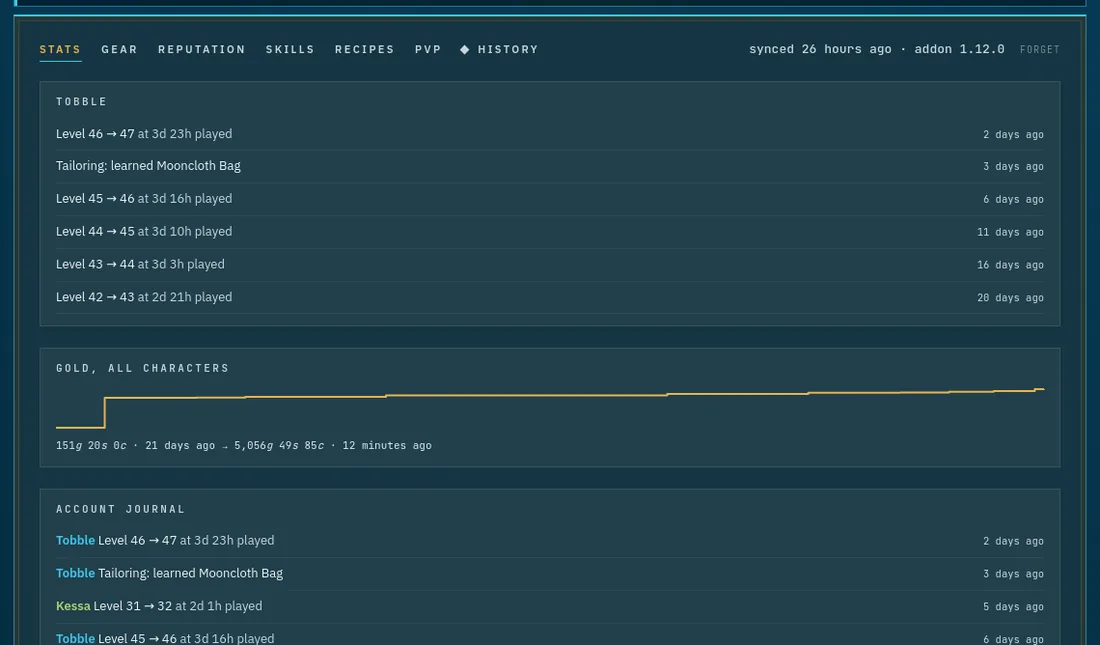
Every level-up with its /played at the ding, gold over time, trades maxed and recipes learned, per character and for the whole account.
 Go to the Forever home page →
Since your last visit
A private summary at the top of the home page: who joined or left your guild since you were last here, and any friend's new recipes, level-ups or loot finds, for the friends who share that with you. Only you ever see it, and it moves forward the moment you do, so nothing repeats on your next visit.
 Go to the Forever home page →
Lockouts
A Lockouts tab on the character sheet lists every raid an alt is still saved to this week: which bosses are already down, which are not, and when the ID resets, so you can see in one look which alt still has a run left in it instead of logging each one in to check.
Go to the Forever home page →
Reputation pace
The Reputation tab says how many days a faction has left to its next standing (Exalted, once you are Revered), worked out from that character's own past readings rather than guessed. It only shows a number once there is a real stretch of history behind it; too little of that, or a faction that has stopped moving, says so instead of a made-up estimate.
 Go to the Forever home page →
Next alt
Which professions none of your characters has yet, so the next alt can fill the gap.
Go to the Forever home page →
Share your professions
One read-only link to every character's professions, for a guild or a friend looking for a crafter: they search "who can make this" across all your alts. Or share just one character. You pick who is in it, gold, gear and bags never are, and stopping kills the link.
Go to the Forever home page →
Armory page
Show off one character with a public page, like the WoW Armory, at an address with its region, realm and name: level, item level, gear with tooltips, stats, reputation, professions and recipes. Shared in Discord it shows a card with the best gear. Gold, bags, zone and played time are never on it, and stopping kills the link.
Go to the Forever home page →
Level together
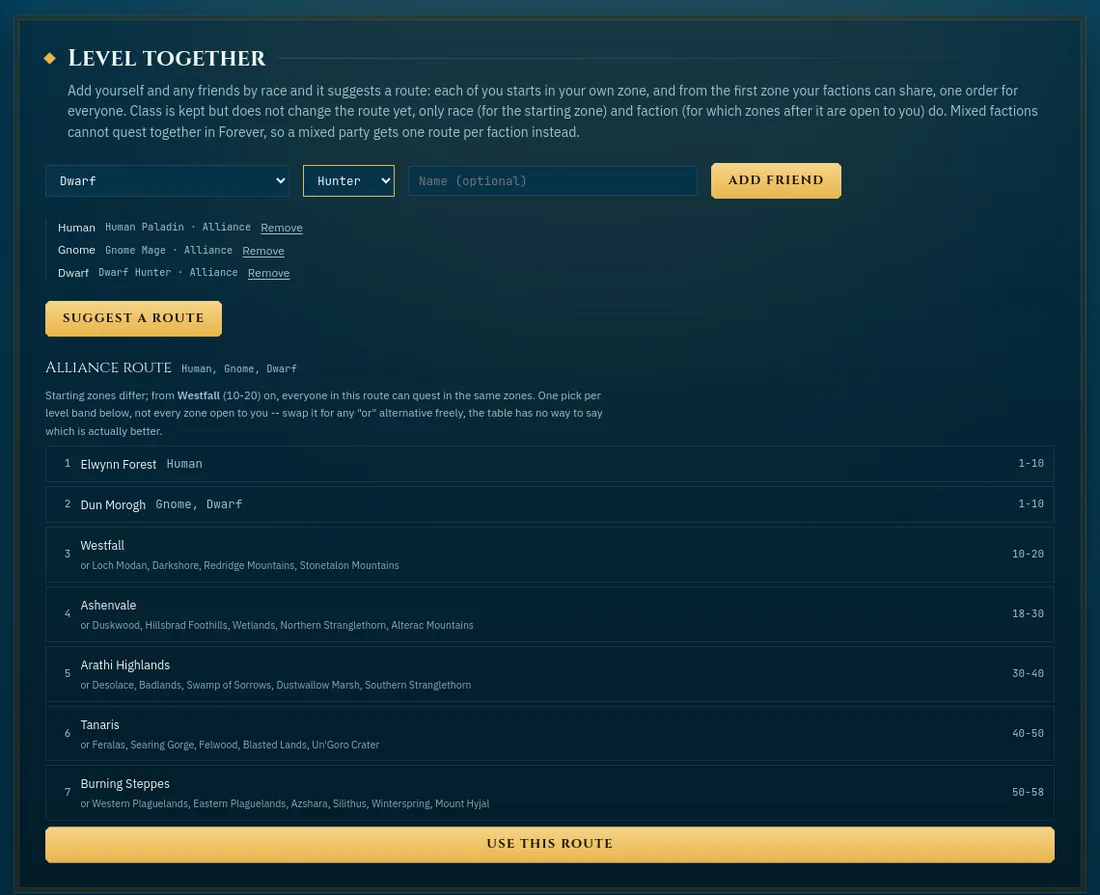
Every zone by level band and faction. Add your party by race and class and it suggests one route for all of you, from each starting zone to the first zone you share. Or build and save a route of your own.
 Go to Forever Zones →
Dungeons and raids
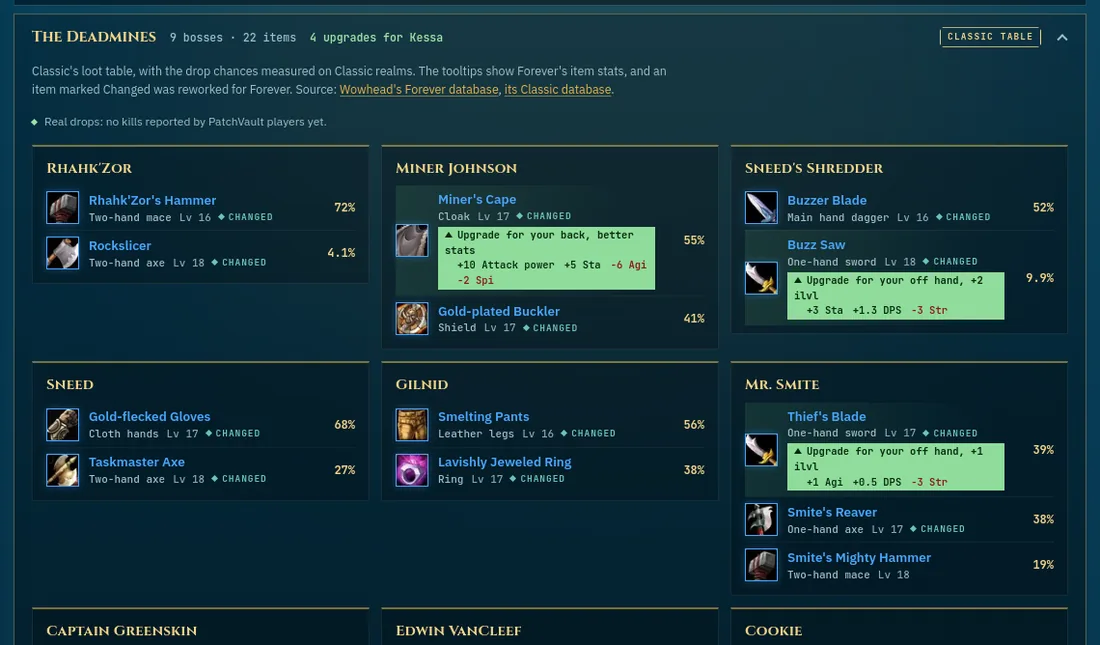
Every instance with its level range, group size and where it is, with Forever's new ones marked. Open one to see the gear each boss drops, as a card per boss: filter by armor type or weapons, hover an item for its tooltip and how it compares with what you wear. Pick the character you are playing and every upgrade for it is marked ("Upgrade for your legs, +12 ilvl"), with a list of the dungeons at its level that hold the most, and a filter to see nothing else. Where Forever's loot is not known yet, it says so. And real drops: what PatchVault players saw each boss drop, sent by the addon, next to Classic's numbers. A quest marker next to each dungeon's name opens its quest list: who gives it, what it asks, and what it pays, with a note where Forever has not confirmed a quest yet.
 Go to Forever Dungeons & raids →
Classes
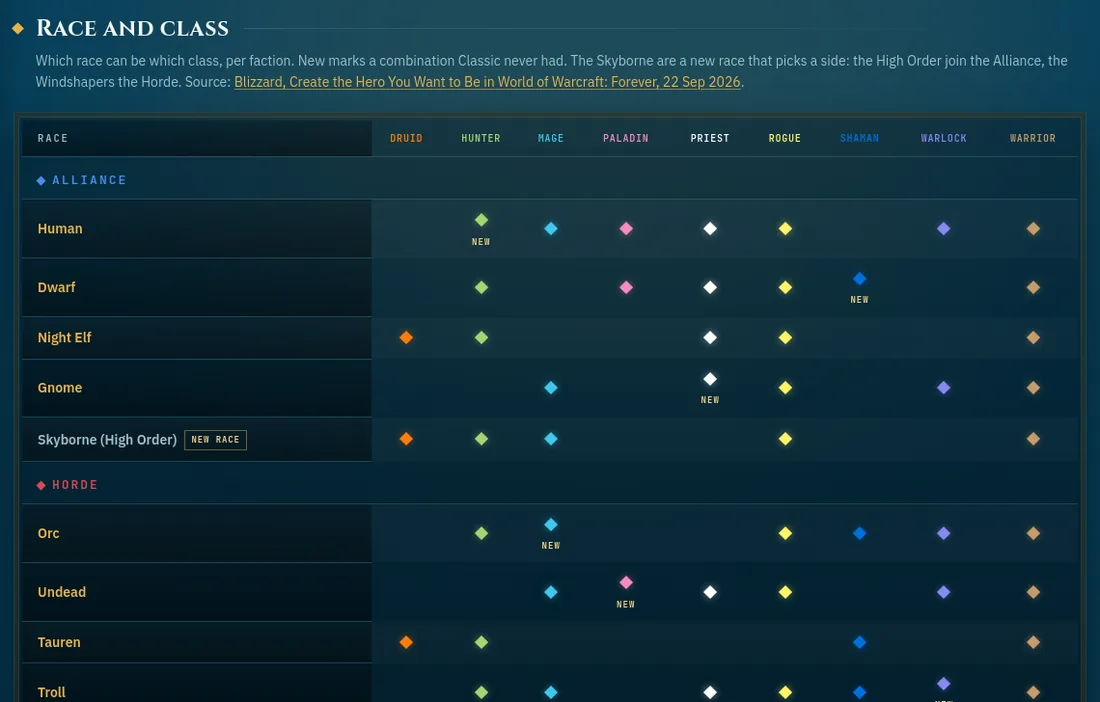
Which race can be which class in Forever, per faction, with the new combinations and both sides of the Skyborne marked, straight from Blizzard. Per class: roles, armor, weapons, talent trees, resource and colour, plus every race's racial traits. Anything still Classic's and not yet confirmed for Forever says so.
 Go to Forever Classes →
Raid prep
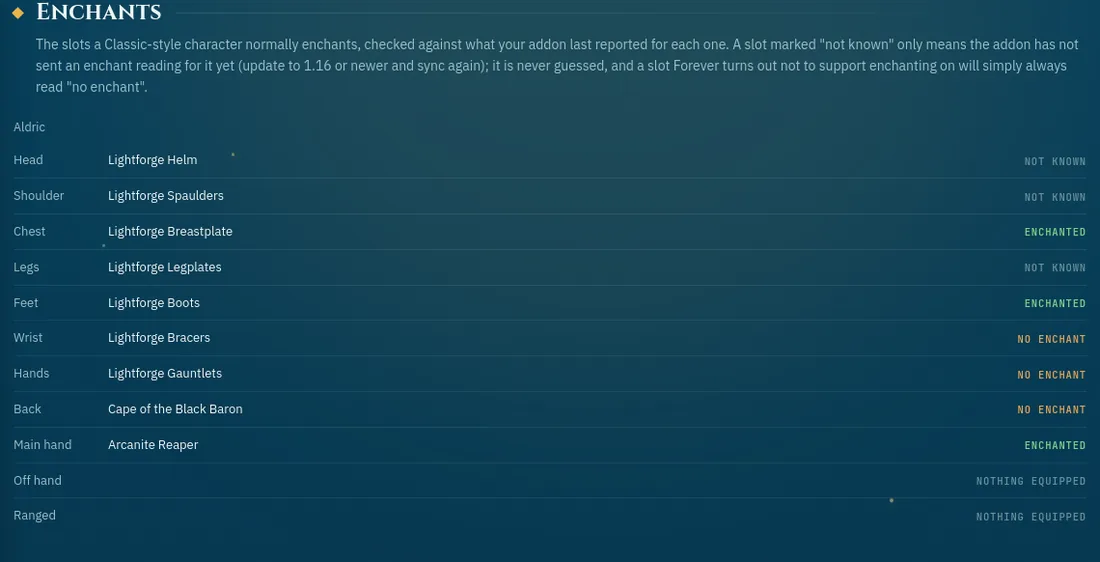
The flasks and potions to get before a pull, one checklist per confirmed raid. Every tick is yours, kept in your browser and synced with your account like the old checklist; nothing here is guessed from quest data, and a recipe Forever has not confirmed yet says so. Pick the character you are playing and it checks every slot that should carry an enchant against what the addon actually reported, reading straight off the item link rather than guessing.
 Go to Forever Raid prep →
Gear finder
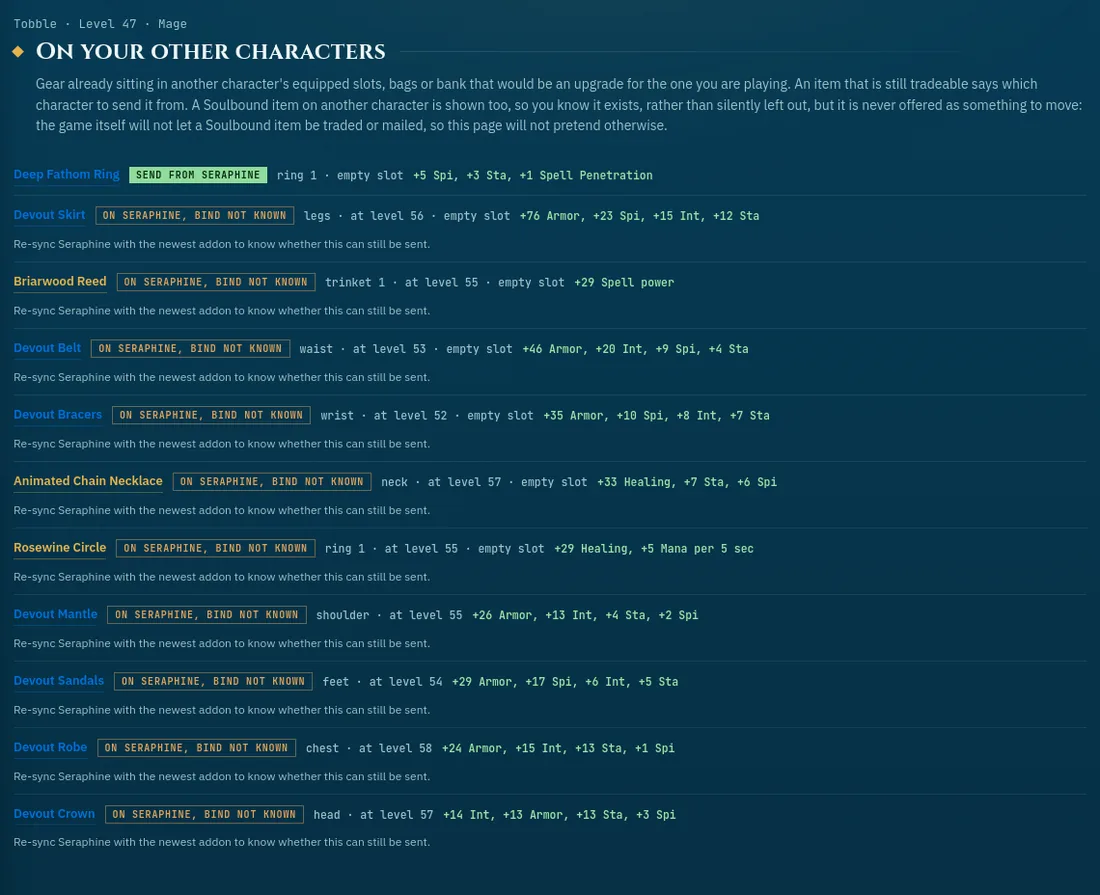
Every upgrade for the character you are playing, in one place. Gear already sitting on your own other characters (the addon now notes whether each item is Soulbound, so a Soulbound one is shown but never offered to move, only a tradeable one says "send from…"), dungeon and raid drops at your level (the same marks as on Dungeons and raids), and recipes real players have open on Crafters, each linking straight to a search for whoever has it.
 Go to Forever Gear finder →
Friends
Send one invite link to anyone you trust (it shows a neat preview card in Discord) and you are friends, on both sides, the moment they accept. Codes still work too. Friends see your Forever characters by default (stats, gear, reputation, recipes, history and loot finds; gold, bags, bank and zone stay private), and per friend and per character you choose more, less or nothing. Hover their gear to compare it with yours. Live, and gone the moment either of you switches it off or removes the other.
Go to Forever Friends →
Crafters
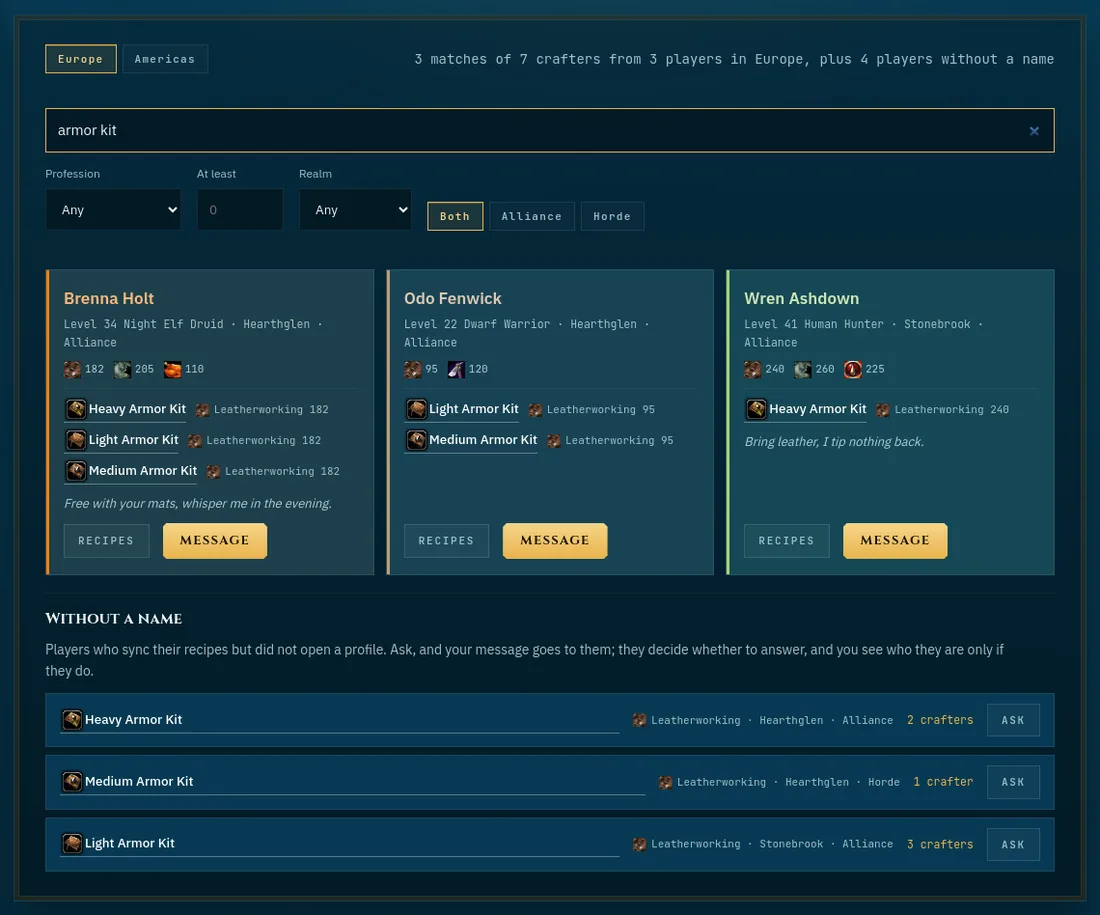
Find a player who can make what you need. Search every open profile in your region by character, profession and rank, or simply by the recipe or item, see all their recipes, and send them a message. Players who never opened a profile count too, without a name: a recipe search says how many can make it on each realm, and Ask sends them your request; you see who they are once they answer. Every profile has its own link to pass on, and it shows who is on it when you paste it in a chat. Your own profile is private until you open it from the home page.
 Go to Forever Crafters →
Guild
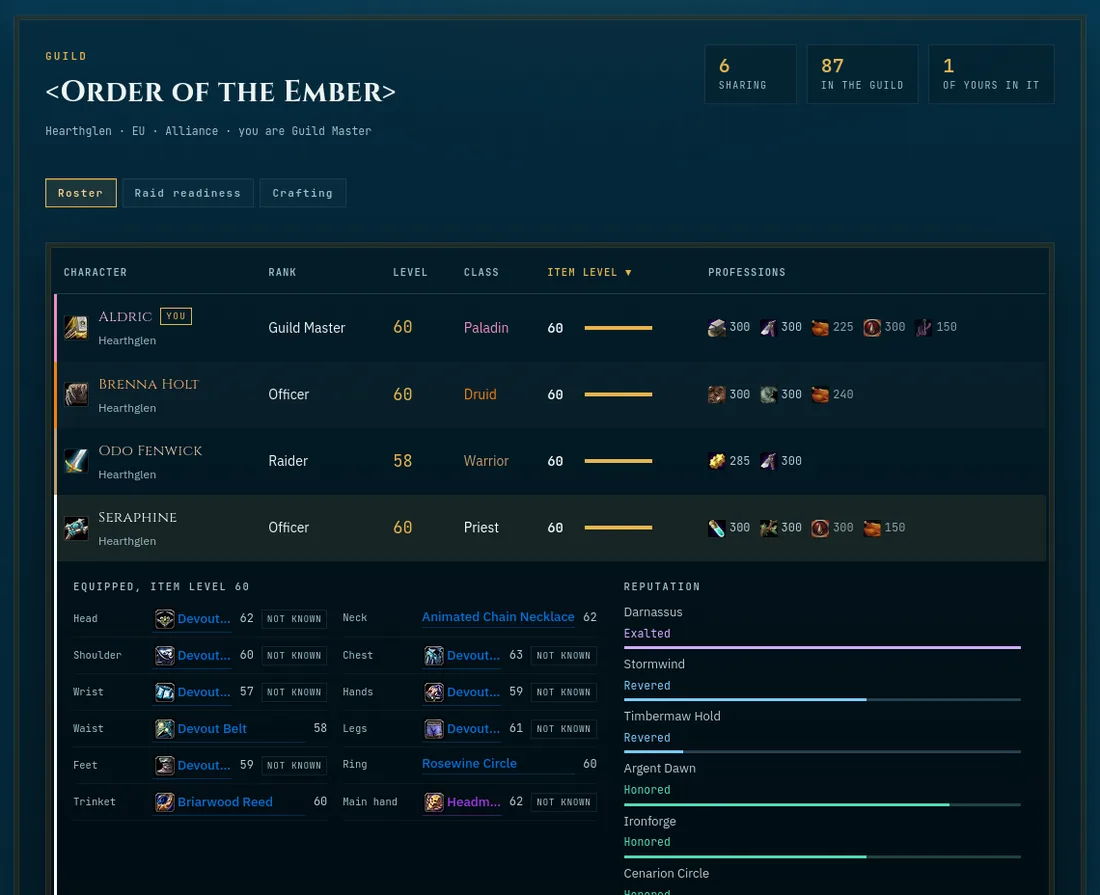
Your guild on one page. The addon reads which guild you are in and the game's own member list, and a guildmate counts once another player's game lists them, so nobody joins by typing a name. Guildmates see each other's basics by default (rank, level, class, gear and profession ranks), and sharing everything adds reputation and recipes: everyone side by side, each character's gear and reputation, a sortable raid readiness view with an enchant-gaps column for the slots Classic-style play normally enchants, a "who can make this" search across the whole guild, and a Message button on each guildmate to write to them straight from their row.
 Go to Forever Guild →
Population
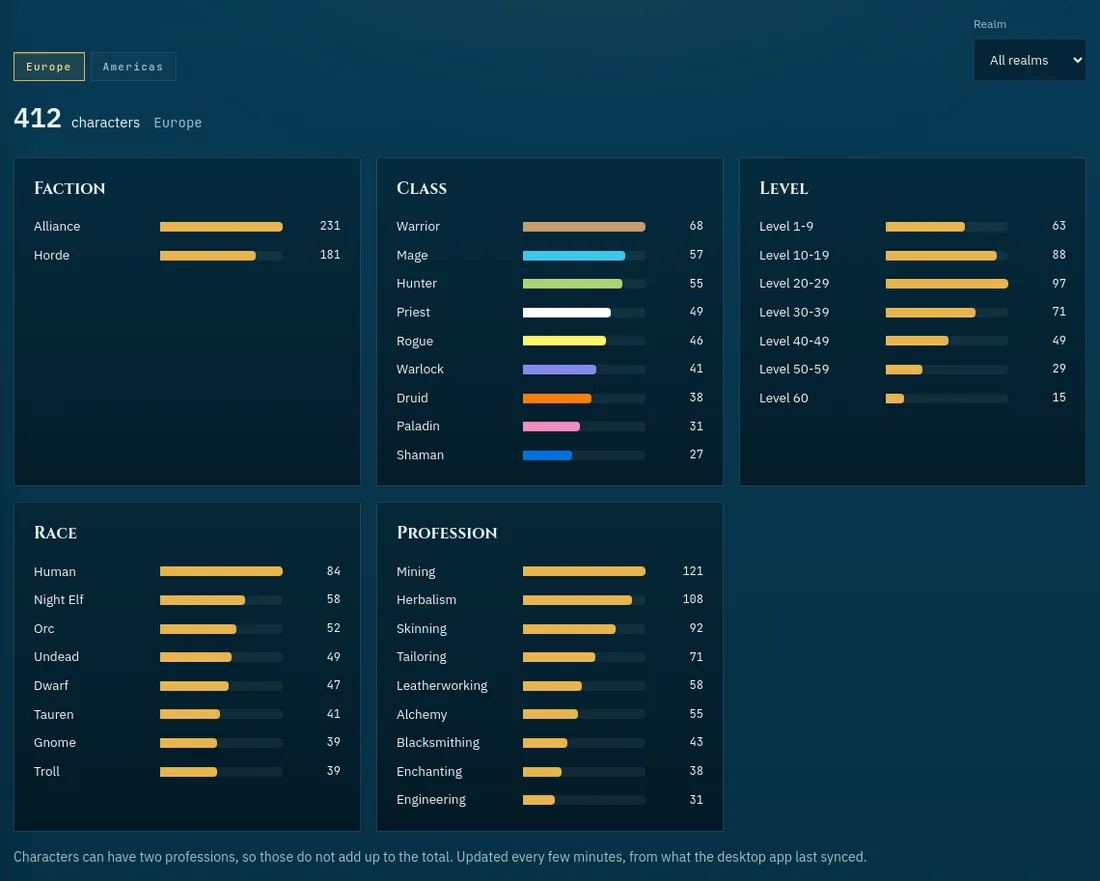
Who plays WoW Forever, as PatchVault sees it: how many characters per region and realm, by faction, class, level, race and profession. Counted without names, and any number under five stays hidden.
 Go to Forever Population →
Messages
Write to a crafter, a friend or a guildmate right on the site. They see the character you write as, never your email or BattleTag, and get a short mail if they want one. Block or report anyone in one click.
Go to Forever Messages →
Everywhere
The addon
PatchVault reads what the game itself shows: your vault, currencies, character sheet, bags and bank, and the recipes of every profession window you open. On Forever it also notes what bosses drop, never who gets it, for the loot cards. Type /pv, copy the line, paste it on the site. From 1.19 (beta) it also shows your alts, item tooltips that know your characters and, on Forever, each dungeon's quests right in the game, each with its own switch.
The desktop app
For Windows, now in the Microsoft Store: get it there and it updates itself. Pair it once with your account and it sends every character at each logout. Nothing to copy or paste, ever.
Go to Account →
An account, if you want one
The site works without one: everything stays in your browser. With an account (email or Battle.net) it follows you to every device, and you can download or delete all of it from the Account page.
Go to Account →
Renamed characters
When a character's name changes, the site spots the old and new card and offers to merge them. Tags, history and recipes move over, on every device.
Install it as an app
Put PatchVault on your phone's home screen or in your Start menu and it opens in its own window, like an app. The site offers it by itself. In Chrome or Edge you can also use the install button in the address bar; on an iPhone it is Share, then Add to Home Screen.
In your language
The whole site in English, German, French or Spanish: pick one at the bottom of the menu and every page opens in it from then on, mails included. The addon follows your game client's language. Item, boss and quest names stay as the game's English data has them.
Try it first
The preview shows the whole site with demo characters, for Retail and for Forever, before you install anything.
Go to Preview →
Tell us what you think
Found a bug, missing something, or stuck? Send a message from the Feedback page, with or without an account. The answer shows up on that page, and by email if you want.
Go to Feedback →
Help
Short answers for when you are stuck: getting started, syncing with the desktop app, sharing, Crafters, Messages, Friends, and what to do when a character does not show up.
Go to Help →
What's new
Every change to PatchVault that you can see or use, newest first, in plain words.
Go to What's new →
Private by design
No ads, no tracking of you across days, nothing sold. The privacy page lists every single thing that is stored and for how long.
Go to Privacy →